
Hide “0 Comments” link in WordPress when using the Disqus Plugin
“Google Fail” posts usually have absolutely nothing to do with what I normally blog about, but are attempts to fill gaps in the mighty collective internet knowledgebase. They are triggered by rare cases where Google has failed me in my search to find some piece of information, or easy instruction on how to do something, and I’ve had to solve the problem myself like in “the olden days” (with hardtack, and liberal application of cholera).
I’ve been using the excellent “Disqus” WordPress plugin for a number of websites, but have been increasingly frustrated that there didn’t appear to be an easy way to modify the shorthand comment count links that appeared in the themes (usually “0 Comments”, “1 Comment”, or “# Comments”). Traditionally in WordPress this would be done through simply modifying the comments_popup_link function in the theme. However because Disqus overwrites this link any customization to this function (like not displaying “0 Comments” at all) were ignored.
I tried adapting a little code snippit from this wordpress support forums thread:
<?php $comment_count = get_comment_count($post->ID); ?>
<?php if ($comment_count[‘approved’] > 0) : ?>(original comments_popup_link code here)<?php endif; ?>
(Because my Disqus synch’s comments with my WordPress installation “just in case” – basically put everything in a big IF statement so that the comments_popup_link is *only* written if at least one “approved” comment exists).
It actually worked pretty well except that it turns out that get_comment_count (and a lot of wordpress comment functionality) counts trackbacks and pingbacks towards comment totals. So even with “0 Comments”, a lot of posts had a $comment_count > 0. Yes there are customizations and plugins to deal with this – but that’s not exactly an elegant fix at that point (not that anything I do is usually ever “elegant”).
So what’s the solution?
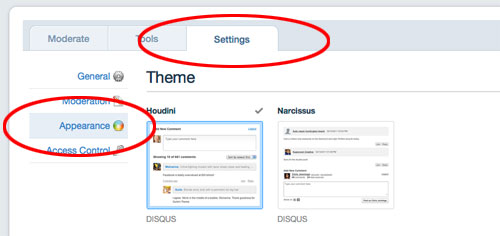
Finally I had the head-smacking realization that if you just log into your dashboard on Disqus, select the “Settings” tab, and the “Appearance” category – voila – there is a “comment count link” section at the bottom that let’s you set custom text for “Zero Comments”, “One Comments” or “Multiple Comments”. And (facepalm) these settings are propagated to your WordPress site.
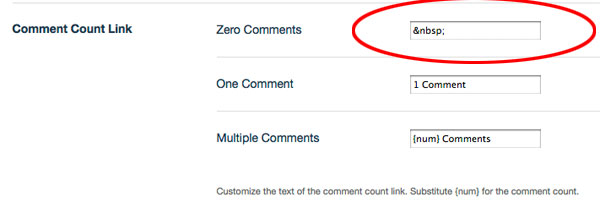
One final hurdle is that Disqus doesn’t seem to let you set the “Zero Comments” field to hide (in fact entering no value caused a pretty scary error message). But you can set that field to, the webmasters favourite hack: “ ” (a non breaking space) – which effectively hides the “0 Comments”.
See what I mean about not exactly being “elegant”? Shut up. It works.

